
Local support · Real people

We're here to keep you connected.

Log a support request and our Garden Route team will get back to you, usually within one business hour.

What we do

Built, connected and maintained locally

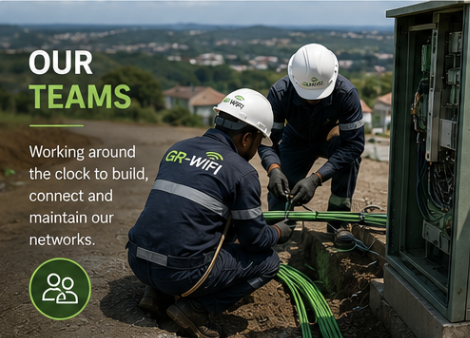
Our Teams

Our Teams

Field & network

Working around the clock to build, connect and maintain our networks across the Garden Route.
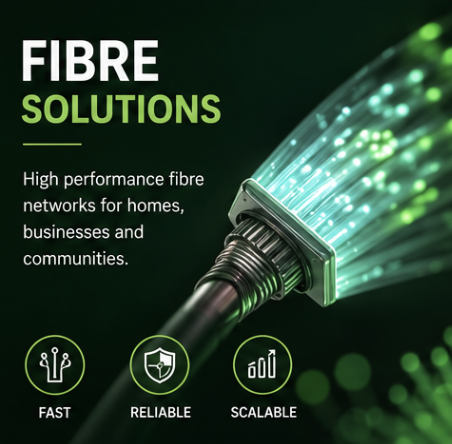
Fibre Solutions

Fibre Solutions

Fast · Reliable · Scalable

High performance fibre networks for homes, businesses and communities.
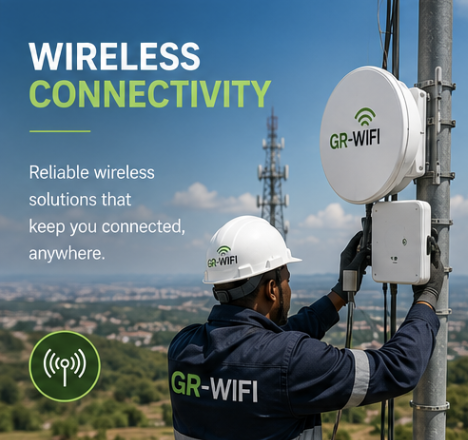
Wireless Connectivity

Wireless Connectivity

Anywhere coverage

Reliable wireless solutions that keep you connected, anywhere along the route.

FAQ and Troubleshooting

Quick fixes for common Wi-Fi issues

A few simple checks that often get you back online in minutes. Tap a question to see the answer.

My internet is not working. What should I check?

Most connection issues can be sorted out with a few quick checks.

  • Check that your Wi-Fi router or modem is switched on.
  • Make sure all power and network cables are pushed in properly.
  • Look for any red warning lights on the router or fibre ONT.
  • Switch the router off, wait 30 seconds, then switch it back on.
  • Give it a few minutes to come back online.

If it still won't connect, our Support team is happy to help.

My Wi-Fi is slow. What should I do?
  • Move closer to the Wi-Fi router and try again.
  • Check if other devices are downloading, streaming or updating in the background.
  • Restart the Wi-Fi router.
  • Run a speed test to see what you're actually getting.
  • For the most accurate result, plug a computer into the router with a network cable.
How do I run a speed test?

Before you run the test:

  • Pause big downloads and streaming.
  • Test close to the Wi-Fi router.
  • If you can, use a network cable for the most accurate result.
  • Take a screenshot of the result if you need to send it to Support.
My Wi-Fi works in one room but not another.

Wi-Fi signal can be affected by distance, walls, appliances and other electronics nearby.

  • Move closer to the router and test again.
  • Place the router in a central, open spot in the home.
  • Avoid putting the router inside a cupboard or behind a TV.
  • For bigger homes, a Wi-Fi mesh system or extra access point can help.
What do the lights on my router or fibre box mean?
  • The Power light should normally be on.
  • The Internet or PON light should normally be stable.
  • A red LOS light on a fibre ONT usually means a fibre connection problem.
  • If you see a red LOS light, please contact Support.
Should I restart my router?

Yes, a restart fixes a lot of small issues. Here's the safe way:

  • Switch the router off.
  • Wait 30 seconds.
  • Switch it back on.
  • Give it 3 to 5 minutes to fully come back online.

Please do not press the RESET button on the router. That can erase your router settings.

I can connect to Wi-Fi but there is no internet.
  • Check if other devices in the house have the same problem.
  • Check the router and fibre ONT lights.
  • Restart the router.
  • Only restart the fibre ONT if you're asked to, or if it's clearly needed.
  • If everything is still offline, please contact Support.
When should I contact Support?

Please get in touch if:

  • Your router does not power on.
  • You see a red LOS light on the fibre ONT.
  • Your internet stays offline after restarting the equipment.
  • Speed tests are still well below your package speed, even over a cable.
  • Your connection keeps dropping.

Still need help?

Our Support team is here to assist you.

Contact Support

Secure support form

Tell us what's happening

Your details are transmitted securely and only shared with our support team. We validate every field before submission and never send sensitive account data over insecure channels.

  • End-to-end HTTPS with strict input validation on every field.
  • We never ask for passwords or full banking details via this form.
  • POPIA-aligned handling. Your info is only used to sort out your request.
0/1000